Working With Models
The Showcase Bundle SDK supports loading dae, fbx, obj and gltf scene and model assets. Internally, we use the three.js asset loaders.
The loader components download and instantiate the models within the matterport scene. We will be using async/await instead of promises in the following examples.
Select a model
The following is a list of urls that you can use for this tutorial.
| Type | Component | Scale | URL |
|---|---|---|---|
| gltf binary | GLTF_LOADER | 0.01 | Duck.glb |
| gltf | GLTF_LOADER | 0.01 | CesiumMan.gltf |
| obj | OBJ_LOADER | 0.01 | female02.obj (.mtl) |
| dae | DAE_LOADER | 0.3 | stormtrooper.dae |
| fbx | FBX_LOADER | 0.00002 | stanford-bunny.fbx |
Setup your scene
Add some lights to your scene, otherwise, your models will be black. We provide a basic lighting component.
Start after https://github.com/matterport/showcase-sdk-tutorial/blob/master/src/index.ts#L25
const [ sceneObject ] = await sdk.Scene.createObjects(1);
const lights = sceneObject.addNode();
lights.addComponent('mp.lights');
lights.start();
Add your component to the scene node
The component type will depend on the model you choose. We will use the stanford bunny.
const modelNode = sceneObject.addNode();

// Store the fbx component since we will need to adjust it in the next step.
const fbxComponent = modelNode.addComponent(sdk.Scene.Component.FBX_LOADER, {
  url: 'https://cdn.jsdelivr.net/gh/mrdoob/three.js@dev/examples/models/fbx/stanford-bunny.fbx',
});
Scale your model
Some models aren't calibrated to real world units so you may have to adjust the model to be a more realistic size. We provide an adjustable position, rotation and scale for each model instance. See the inputs property for FbxLoader.
fbxComponent.inputs.localScale = {
  x: 0.00002,
  y: 0.00002,
  z: 0.00002
};
Position your model within view
We will lower the scene node a bit. The default position is 0, 0, 0
modelNode.position.set(0,-1,0); // drop ~3 feet
Start it
See SDK Architecture - Scene Nodes for an explanation of what happens when you start a scene node.
modelNode.start();
Animate it
We would like to see all sides of the model so we will rotate the bunny around the Y axis.
const axis = new THREE.Vector3(0, 1, 0);
const tick = function() {
  requestAnimationFrame(tick);
  modelNode.quaternion.multiply(
    new THREE.Quaternion().setFromAxisAngle(axis, 0.02)
  );
}
tick();
Launch your browser
Launch http://localhost:8000/
You may see a delay at startup since the showcase tries to preload geometry and textures.
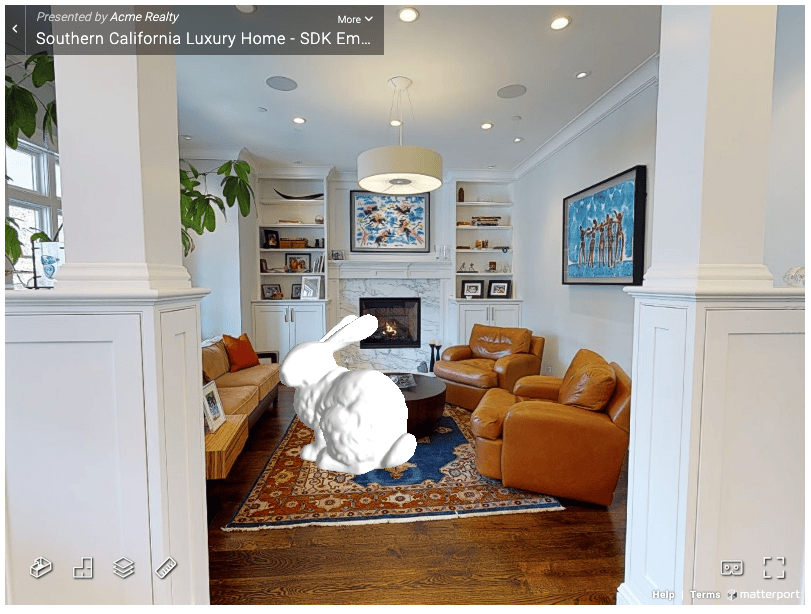
Rotating Bunny